

Standard Accounts (OAuth)
Standard accounts use an OAuth 2.0 authorization code flow with PKCE to let existing Meteroid users connect their organization to your platform. The user goes through a consent screen, approves the connection, and your platform receives tokens to act on their behalf. This is the right approach when your users already have Meteroid accounts and you want to integrate with their existing billing setup.If your users don’t have Meteroid accounts yet and should not have write access to core entities, use Express Accounts instead — they handle user registration and organization setup automatically.
How It Works
The flow follows the standard OAuth 2.0 Authorization Code grant with PKCE (RFC 9700):- Your application redirects the user to Meteroid’s authorization endpoint
- The user sees a consent screen showing your app name and the requested permissions, and selects which organization to connect
- On approval, Meteroid redirects back to your app with an authorization code
- Your server exchanges the code for an access token and refresh token
- You use the access token to make API calls on behalf of the connected organization
OAuth Apps
Before initiating the OAuth flow, create an OAuth app from Settings > Connect > OAuth Apps. You need to provide:- App name — displayed to users on the consent screen
- Redirect URIs — the URLs Meteroid will redirect to after authorization (exact match required, no wildcards)
Permissions
OAuth tokens currently grant full access to the connected organization’s data — equivalent to an API key for that tenant. Granular scope-based permissions (e.g. read-only billing access) are planned for a future release.Authorization Flow
Step 1 — Redirect to Authorize
Redirect the user’s browser to Meteroid’s authorization endpoint with PKCE parameters:Step 2 — User Consent
The user sees a consent screen showing your application name. They select which of their organizations to connect, then approve or deny the request.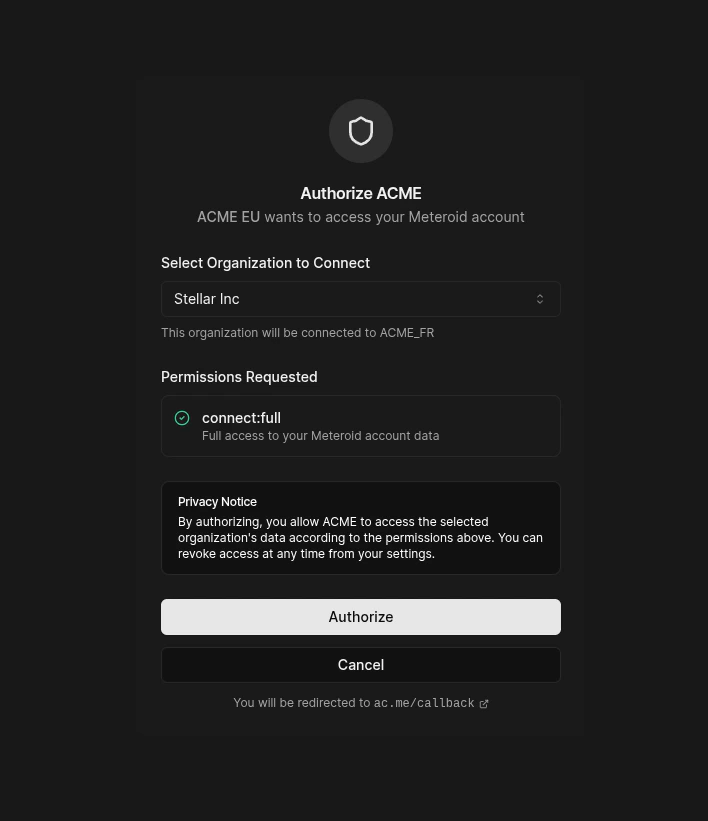
redirect_uri with an authorization code:
Step 3 — Exchange Code for Tokens
Exchange the authorization code for tokens. The code is single-use and expires after 10 minutes.Using Tokens
Making API Calls
Use the access token as a Bearer token. Meteroid automatically resolves the request to the connected organization’s tenant context.Refreshing Tokens
When an access token expires, use the refresh token to obtain a new pair:Token Introspection
Check whether a token is valid (RFC 7662):active: true with token metadata if valid, or active: false for any invalid, expired, or revoked token.
Token Revocation
Revoke a token (RFC 7009):Security
- PKCE is mandatory. Only the
S256challenge method is supported —plainis rejected. - Tokens are hashed at rest. Access tokens, refresh tokens, and authorization codes are stored as cryptographic hashes, not plaintext.
- Refresh token rotation. Each refresh produces a new token pair; the old refresh token is immediately invalidated.
- Client authentication required. All token operations (exchange, refresh, introspect, revoke) require HTTP Basic authentication with your client credentials.
- Redirect URI exact matching. No wildcards or subdomain matching — the redirect URI must exactly match a registered URI.
Disconnecting
Either party can disconnect a Standard account:- Platform can disconnect from the Connected Accounts tab or via API
- End user can disconnect from their own Meteroid dashboard