

One-off top-up
From the dashboard
On the customer’s wallet, click + Add credit and choose Sell credit, then:
You can set an expiry in months (empty: the credit never expires). For a credit unit, set the quantity; the price per credit defaults to the customer’s agreed price, else the unit’s list price.
From the Customer Portal
When top-ups are enabled (see Credit in the Customer Portal), customers click Add credit on their Credit tab, pick an amount and a payment method, then Confirm and pay. Credit bought in the portal never expires.Invoicing and tax
Each top-up creates a one-off invoice with a single credit line. A money top-up is not taxed when sold: tax is charged on the invoices the credit later pays. Credit units are taxed when sold.Top-ups are charged through Stripe, from 1.00 to 10,000.00 per charge (for currencies with cents), with up to 10 charge attempts per customer every 24 hours.
Automatic top-up
Setting up a rule
Open the wallet settings (gear icon, or Set up on the Automatic top-up card):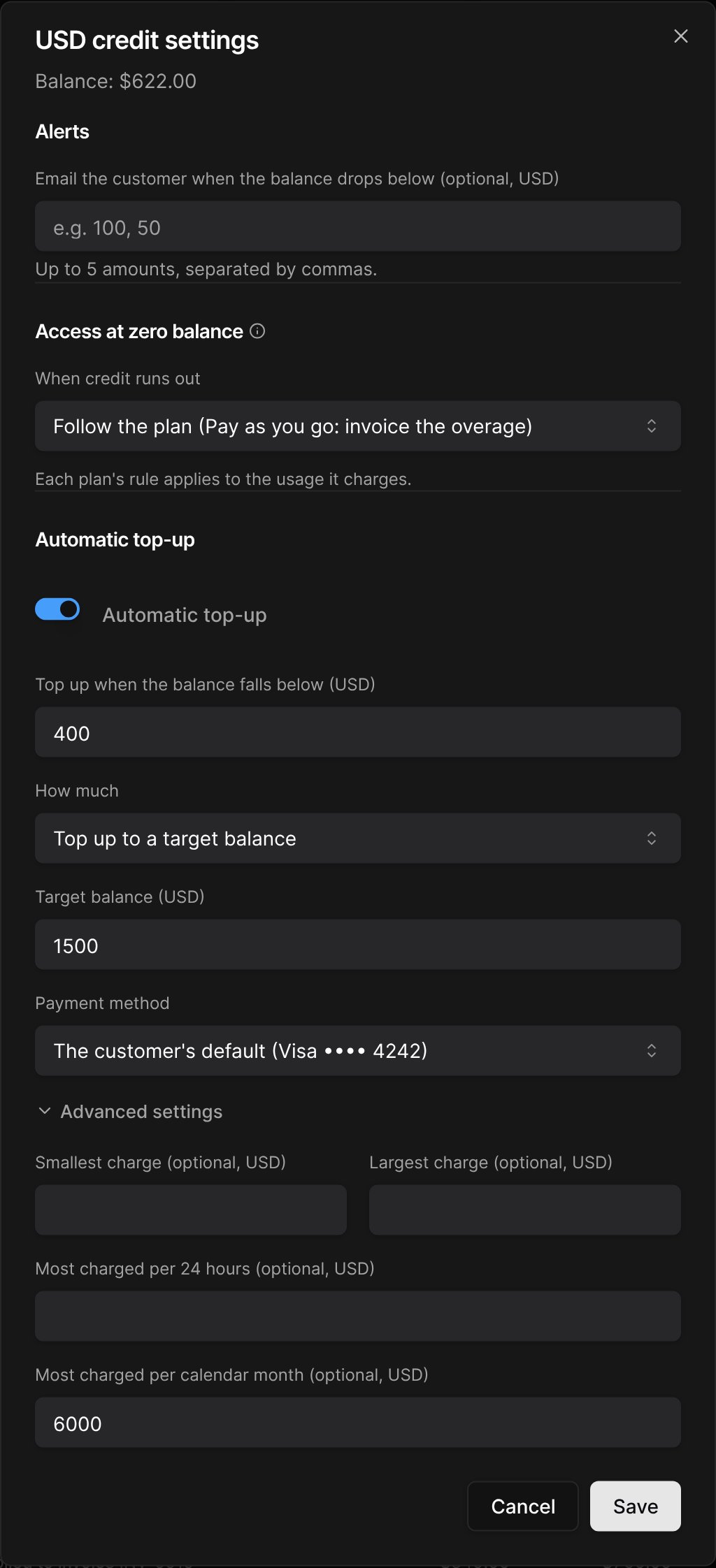
Example. Trigger $400, top up to $1,500. With $900 on account and $520 of unbilled usage, the balance is $380: $1,120 is charged.
The customer’s agreement
An automatic top-up charges the customer’s card while they are not present, so it needs their agreement:- When you set or change the terms, tick The customer agreed to automatic charges on these terms. Your name and the date are recorded.
- Customers can set their own rule in the portal and confirm it with Authorize. If you later change terms they confirmed, the rule waits until they confirm the new ones.
Failures
The customer is emailed on the first failure. Failing or stopped rules show on the wallet, in Billing > Wallets, and as a Credit access signal on the customer.
A stopped rule resumes when the customer authorizes it again in the portal, or when you update its terms with the customer’s agreement.
Low-balance alerts
In the wallet settings, under Alerts, enter up to five amounts (e.g.100, 50). The customer is emailed each time the balance drops below one of them.
The email is sent to the customer’s invoicing emails. You can turn it off in Settings > Customer emails, under Prepaid balance.